9 Top Productivity Tips For Visual Studio 2019 For Developers

Hi fellow developers. I would like to share with you a couple of cool new features from Visual Studio 2019.
These new and old features do not require you to install any other additional tools or extensions. They have already been implemented in VS19’s vanilla installation. Let’s have a look at some of these features:
1. Multi paste
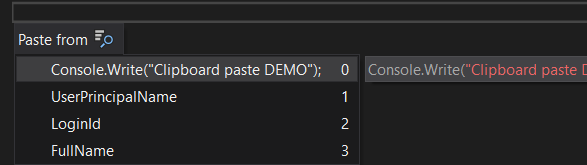
It has been here for a while but now boasts a new, cool-looking appearance. Without any setup needed, you can now use CTRL + SHIFT + V to access the clipboard paste window to easily paste your CTRL + Cs instead of using the standard CTRL + C, CTRL + V combo. Pretty cool, right? (This is not necessarily a new feature; it’s more like an unknown one.)
2. Refactoring tools
Especially useful for team leaders, during code reviews, when refactoring code or just for the general need to keep your document well formatted, etc. At the bottom of your text editor, there are these “Document health” indicators.
When your document is alright, no issues are found and you are good to go. Warnings are shown with a yellow triangle, as you are used to.
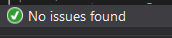
This is useful because with only one glance you can determine whether or not your document has some issues.
3. Code duster
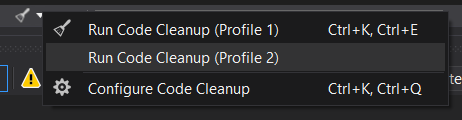
Now, when you forget the semicolon (the world champion of hide and seek), when you are missing parentheses or some quotation marks, or make any other syntax errors, you can easily navigate through those errors with arrows or the keyboard shortcut ALT + PgDn/Up. You don’t need to stare into your monitor that much. Also, right next to the right arrow, you can see a little brush for code cleanup. You can configure your own cleanup profile to fit your needs.

Set it up. Do not manually clean your code. Your time is precious; don’t use it meaninglessly.
4. Data Breakpoints
Especially useful while debugging. Data breakpoints could be a good/alternate way to debug your application. Instead of putting regular breakpoints in your code, you can open
Locals->Property Name->Break When Value Changes.
This is especially useful in scenarios where the global variable value has been changed.
5. Watches
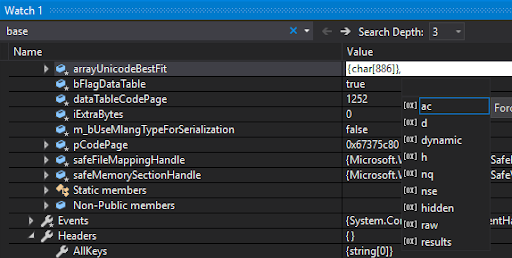
The Watch window now contains a search bar where you can quickly navigate through the variables, data collections or whatever your heart desires. Also, the comma separator in the Autos/Watch/Locals window is very useful. After double-clicking on the selected property, type “,” after the property name to access the drop down list of all the possible format specifiers.
6. Performance
To improve the performance of your Visual Studio, open Options->Project and Solutions and disable this option: Restore Solution Explorer project hierarchy state on solution load.

7. Nice to Have
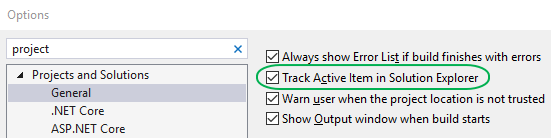
It’s been commonly used throughout the ages, but keeping track of your active item in the Solution Explorer could be pretty useful. Navigate through Options->Project and Solutions->General->Track Active Items in Solution Explorer (check).
8. Annoying tool tip? No More.
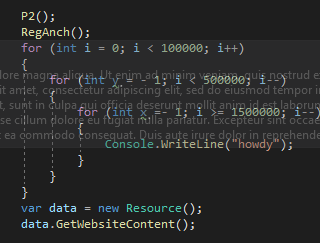
We love tool tips, right? But remember the last time a tool tip was an obstacle to your code and you were forced to click somewhere else to get rid of it? In 2019, you can just hold “Ctrl” to make the tool tip transparent and finish the chunk you were just working on.
9. Extra Tip From Visual Studio 2017
Not quite sure if this one is that well known, but did you know that Visual Studio also provides a windows layout manager? This is especially useful when you are taking your work home (not recommended), you are using different hardware throughout the office or you are operating at multiple workstations.
I hope you like these features as much as I do. Now — let’s be productive and work smart!
Read on: Good Code vs Bad Code
Credits:
https://docs.microsoft.com/en-us/visualstudio/ide/whats-new-visual-studio-2019?view=vs-2019
https://devblogs.microsoft.com/visualstudio/visual-studio-tips-and-tricks/